
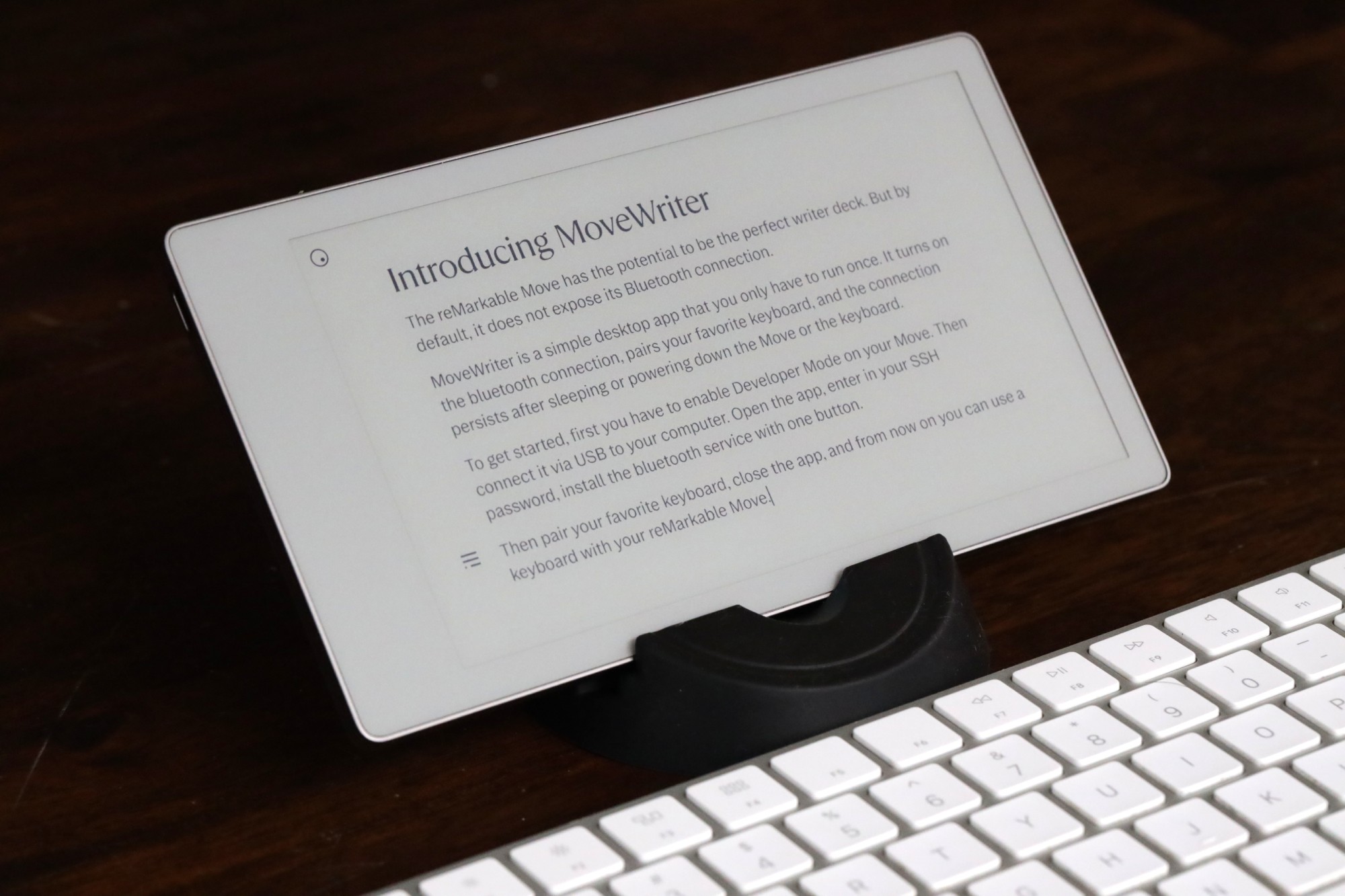
Introducing MoveWriter: Bluetooth Keyboard Support for reMarkable Move
The reMarkable Move is an incredible E Ink tablet. It's fast, focused, and beautifully designed for jotting down thoughts. But it's missing one thing: keyboard support.
ReMarkable never exposed Bluetooth pairing on the Move, which means you're limited to handwriting. For quick notes that's fine — but for longer writing sessions, a keyboard makes all the difference.
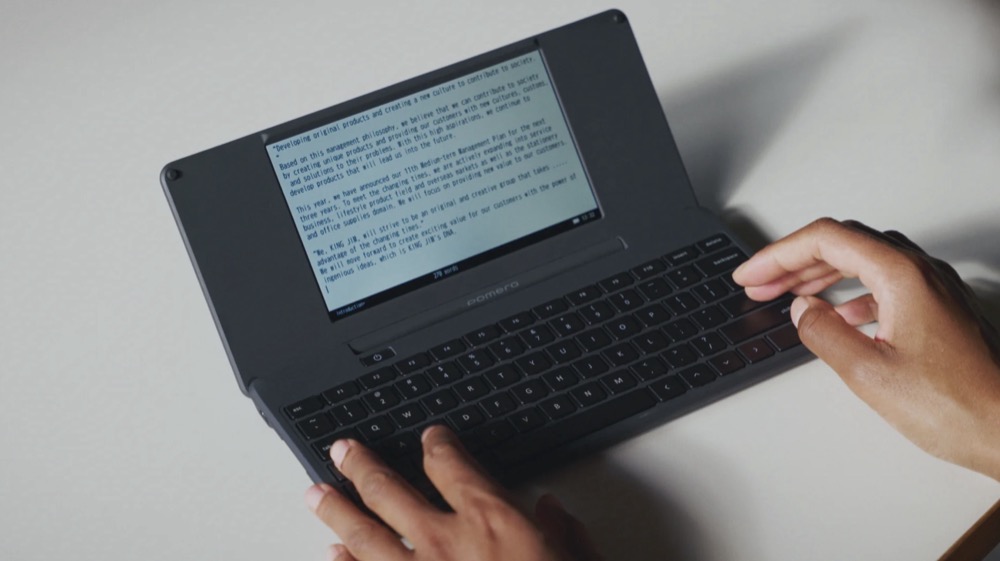
And personally, I've been searching for a perfect portable writer deck for decades. The closest I've come is the King Jim Pomera DM250, but the keyboard is small, which makes for a less than ideal writing experience. I've always wished I could pair the Apple Magic Keyboard with a portable E Ink screen.
As luck would have it, the reMarkable Move is actually the perfect screen for long writing sessions. And it already has text support, it has a backlight, it's easy to sync your documents, and most of all, the screen has little to no latency while typing.
I also built Planneriffic, a calendar sync app that turns your reMarkable into a daily planner with your actual events on it. Working on that project gave me a deep understanding of the Move's internals — and made me even more convinced that it could be a great writing device, if only it had keyboard support.
So I set off to see if there was a way to type on the Move. And it turns out there is, but it was technically a hurdle for most people, and the bluetooth pairing never survived a reboot.
What MoveWriter does
After going down many rabbit holes, and after thorough testing, I finally got to an app that works just about perfectly.
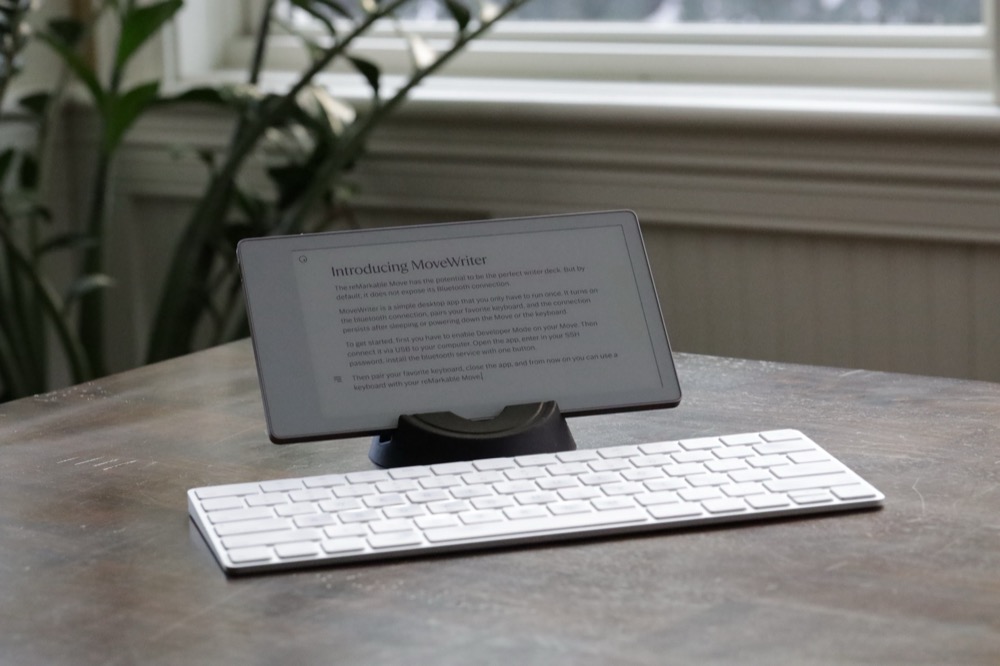
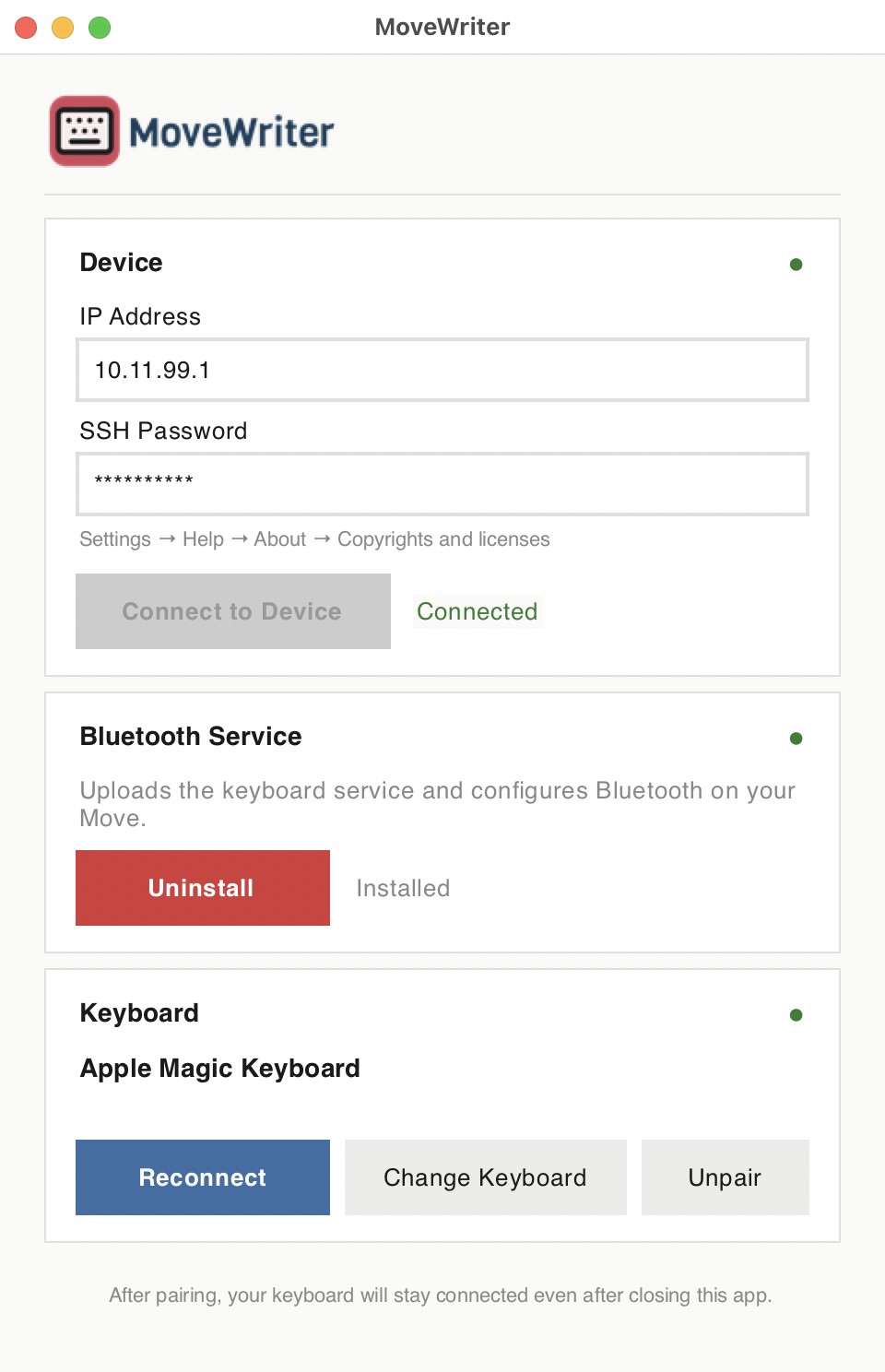
So here it is. MoveWriter is a desktop app (Mac & Windows) that installs a Bluetooth keyboard service on your reMarkable Move. After a one-time setup over USB, you can pair any standard Bluetooth keyboard and start typing directly on the E Ink screen.
The best part is it survives reboots. Once installed, the service starts automatically every time you turn on your Move. If you've recently been typing and your Move has gone to sleep, start typing and you'll see the the Move wake up and go directly to where you're typing.
If it's been a while since your keyboard was connected to your Move, just turn off the keyboard and turn it back on again, and after a few seconds it will be paired again.
Version 1.1: PIN-based keyboard support
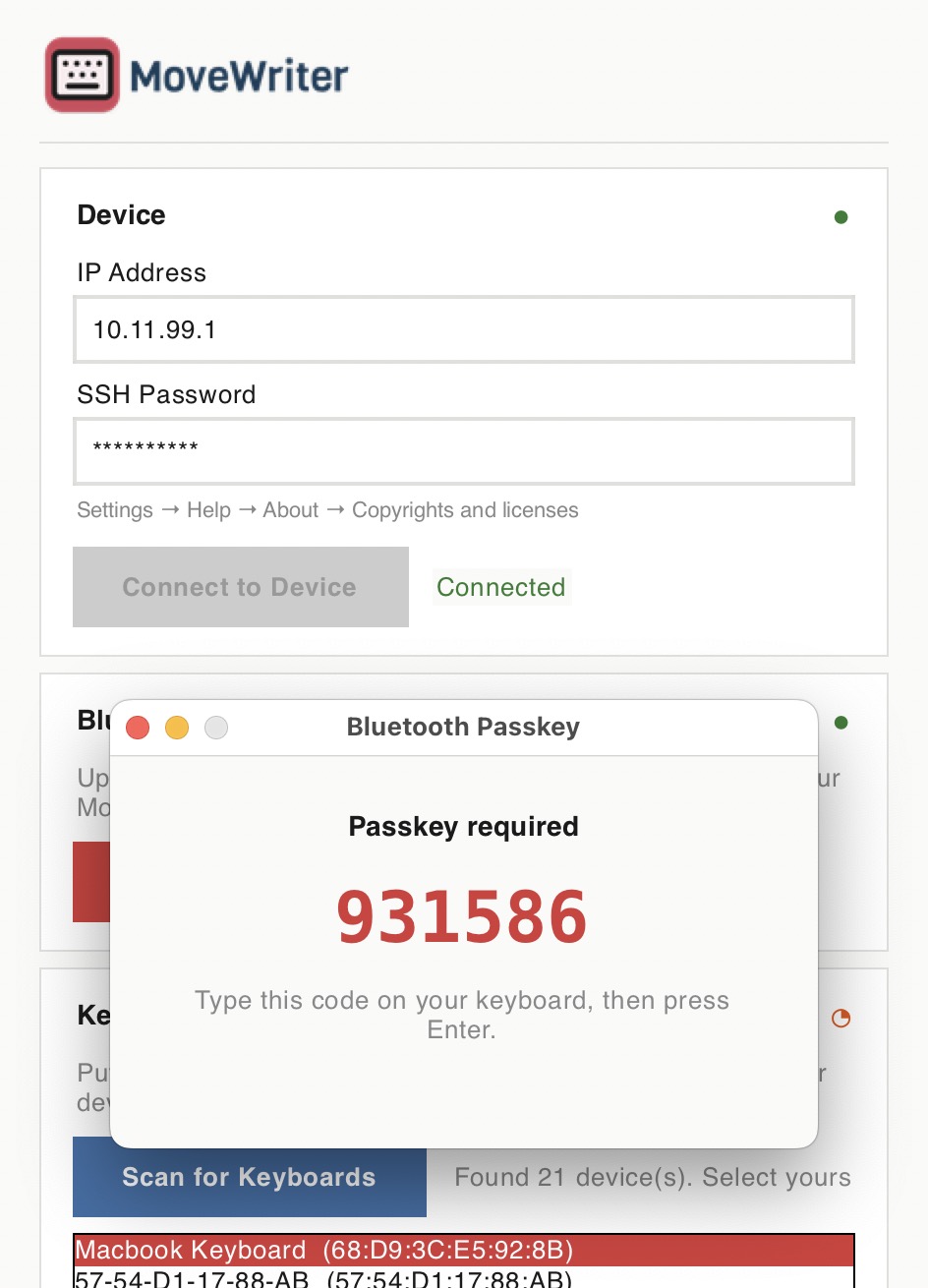
After launching MoveWriter, I heard from several people who use keyboards that require a PIN to pair — and couldn't connect. Version 1.1 fixes that. MoveWriter now detects when a keyboard requires a passkey and displays it on screen so you can type it in and complete pairing.
Version 1.2: International keyboard layouts
One of the most requested features was support for non-US keyboard layouts. Version 1.2 adds 23 language layouts — and the best part is you don't need to change any settings on the Move itself. No system language changes, no keyboard input language settings. MoveWriter patches the keyboard input mapping directly, so everything just works.
Just select your language from the dropdown in the app. MoveWriter patches the binary on the Move, restarts the interface, and your layout persists across reboots.
Supported layouts: US English, UK English, German, French, Spanish, Italian, Portuguese, Brazilian, Dutch, Swedish, Norwegian, Danish, Finnish, Swiss German, Swiss French, Belgian, Russian, Ukrainian, Czech, Hungarian, Turkish, Greek, and Hebrew.
How to get started
- Enable Developer Mode on your reMarkable Move
- Connect your Move to your computer via USB
- Open MoveWriter and click to install the Bluetooth service
- Put your Bluetooth keyboard in pairing mode
- That's it — you're typing on E Ink
The whole process takes only a couple minutes.
Tips for the best writing experience
After you get your keyboard paired, here are a few tips to make the most of it:
Typing only works in a Notebook or Quick Sheet, not in a PDF. So on your Move, create a new Notebook or Quick Sheet to start typing.
By default, the first line will use a title font. After that, you'll see a regular size font.
Wide columns
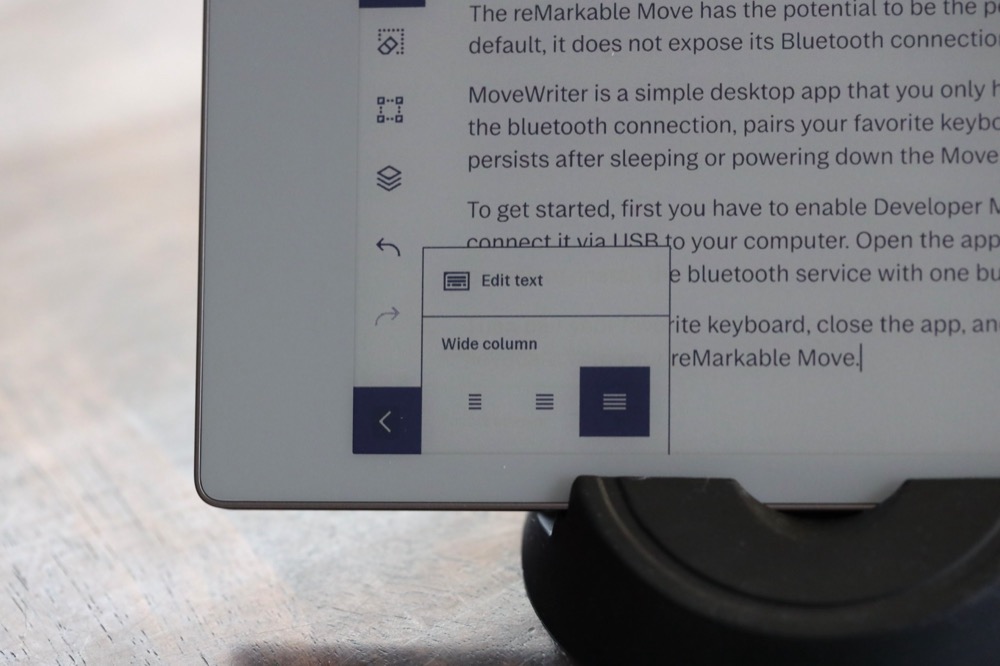
When you create a new Notebook or Quick Sheet and start typing, by default the text will be in a narrow column when you flip the Move to landscape.
If you're in portrait mode, to get a wider column, click on the 3 dots, select Typing, then switch from the Narrow column to Medium or Wide.
If you're in landscape mode, to get a wider column, click on the 3 dots, select More tools, then Typing, then switch from the Narrow column to Medium or Wide.
As you type, the latency on the Move is very low, but if you pause typing for a couple seconds, the Move will refresh. This will temporarily pause typing. I find it almost a challenge actually - must keep typing to keep the screen from refreshing!
Exporting your text
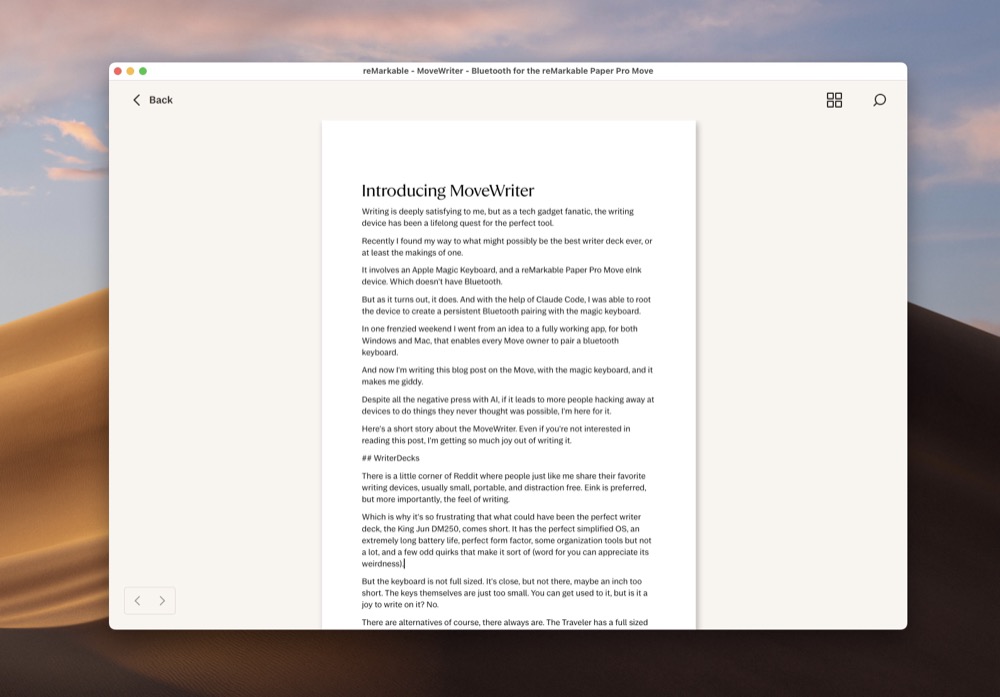
To get your text out of the Move, I find it easy to connect via USB, open the Remarkable desktop app, open the notebook, and copy/paste the text. But you might find other ways that work better? Let me know if you do.
Open source roots
MoveWriter is built on an open-source project. The code is free for anyone to build and run. The downloads on this website offer a fully built, signed and notarized version for both Windows and Mac, so that non-technical Move owners could start typing right away, without having to figure out how to run Github source code.
What's next
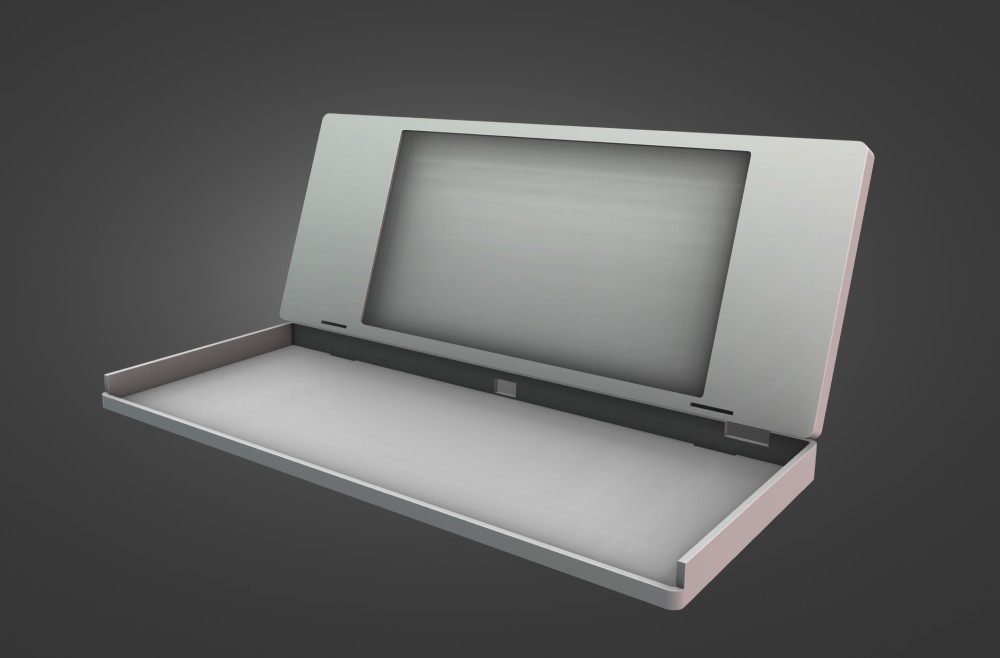
If the bluetooth connection between the Move and the Apple Magic Keyboard is the first step in the process, then the actual writer deck shell is the next one.
I want to design and 3D print something that will perfectly hold the Move and the magic keyboard. It has to enable Move users to quickly grab their Move and use it like they normally use it, writing on it, reading on it. But it also has to be comfortable for long writing sessions.
I know I could start sending CAD files to a 3D printing service and eventually get to a good product. But it's not how I work. I want to iterate many times, and quickly. Sending a file to a service and waiting a week to get it, just to find out it sucks in one little aspect, and doing that 50 times. . . not only would that get tedious but expensive.
The other piece of this puzzle is my kids have been wanting to get into 3D printing for a while, but of course they don't have any idea of how rigorous the process of designing can be. They might print a readymade figurine, which is fine, but to me that's not the spirit of 3D printing.
So I want to use this project as a way for them to see a real journey from idea to product. I want them to see the iterations, the work that will go into polishing the printed object, the design of the hinge, the packaging.
I want them to also see the connection between a website, or an app - e.g. code - and a physical product that is shipped to people who use it.
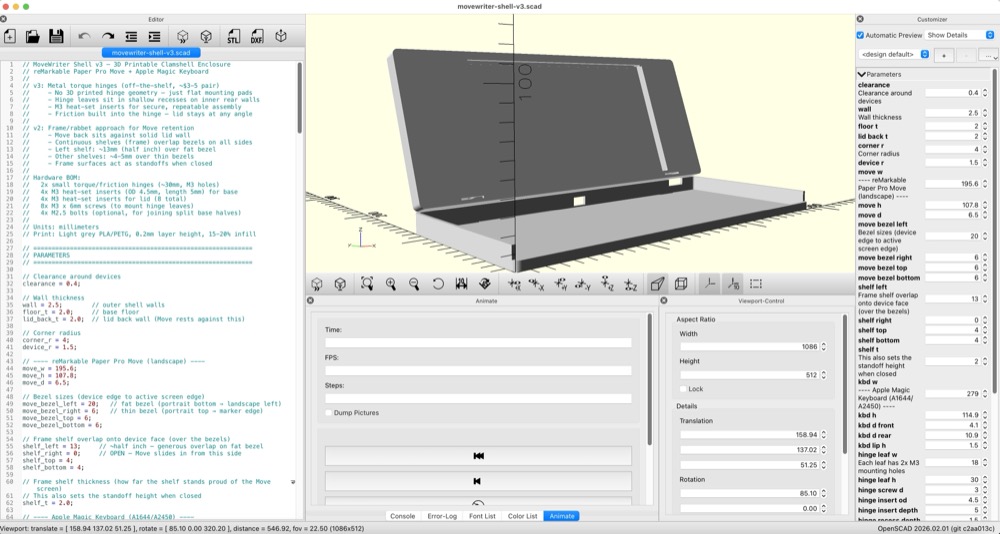
I think it's possible, hopefully. I will have to raise funds for a 3D printer, maybe this app will help me get there.
If this project can spark some entrepreneurial spirit in my kids, then it's going to be something that will have lasting power far more than a weekend of coding.
And if we can make a timeless writer deck in the process, it's going to be so worth it.
If you're interested in reading more about the MoveWriter journey, I wrote about the full MoveWriter story on my personal blog.
-Vik